

Import components
The experiences import command is the recommended way to run the Component Type import pipeline. It guides you through extraction, review, generation, preview, and push in a single session. For cases where you need to re-run a specific stage, inspect intermediate results, or integrate steps into a custom pipeline, you can also run each step individually.
Import with the interactive TUI
Run the full pipeline interactively:
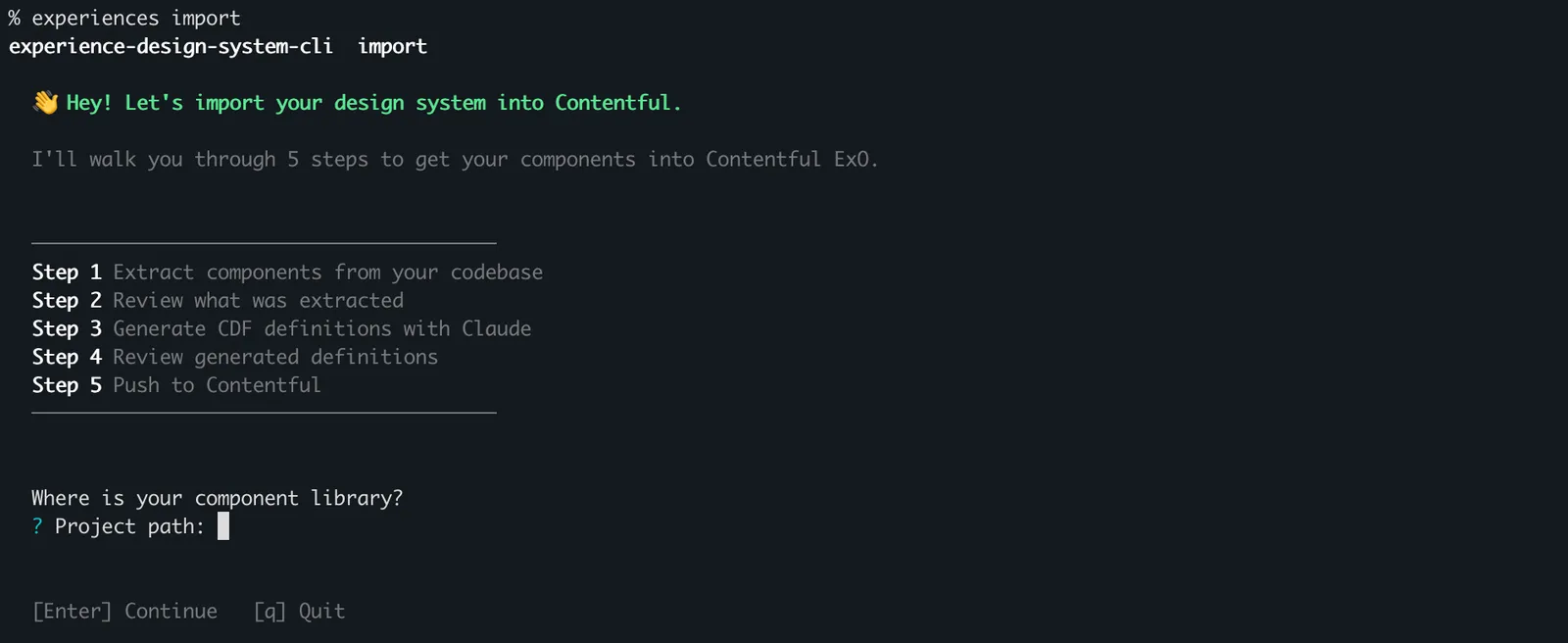
The TUI prompts you for your project path, uses your configured coding agent (defaults to Claude), and guides you through credentials and all review steps. When this command runs, it:
- Scans your local source files (
.tsx,.ts,.jsx,.js,.vue,.astro) to extract Component Type metadata. - Prompts you to review extracted Component Types — accept, reject, or edit individual items. You can also approve all and skip this step.
- Invokes the AI agent to generate CDF definitions for each accepted Component Type — describing their properties, types, and categories.
- Prompts you to review and correct the generated definitions before pushing.
- Displays a preview diff showing what will be created or updated in your Contentful environment.
- Pushes the definitions to your Contentful environment.
Pass --project to pre-fill the project path or --agent to override the default coding agent:
If you configured credentials via experiences setup, the TUI pre-fills your space ID, environment ID, and CMA token automatically.
Run in headless mode
Pass --space-id, --yes, or other automation flags to run without interactive prompts or review gates. This is suited for CI pipelines:
In headless mode, the pipeline runs: analyze extract → analyze select-agent → generate components → apply push. No review gates or preview step are run.
Run individual pipeline steps
Use individual commands when you need to re-run a specific stage, inspect intermediate results, or integrate steps into a custom pipeline. All intermediate data flows through a local SQLite session database — no JSON files are written between steps.
1. Extract Component Types from source
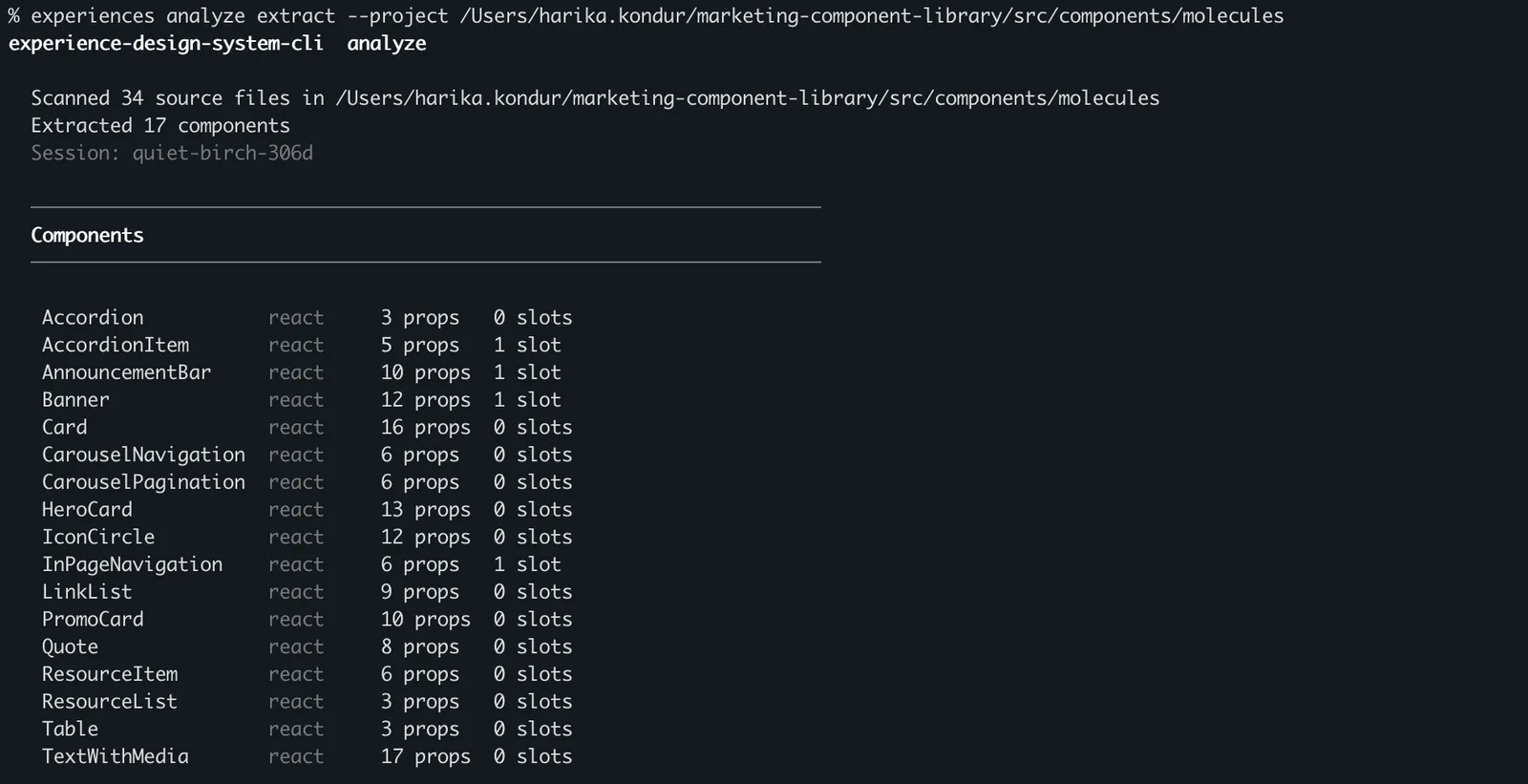
Scans your local source files and stores extracted Component Type metadata in the session database. The command prints a session ID that subsequent commands consume automatically (defaulting to the most recent completed extraction session).
To scan a specific subdirectory within your project:
The extractor supports React, Vue, Astro, Stencil, and Web Components. It ignores node_modules, dist, build, .next, .nuxt, and test/story files automatically.
2. Select Component Types
Use Option A (agent) for automated pipelines, Option B (TUI) for first-time review, or Option C (pattern flags) for scripted re-runs.
Option A — AI agent selection:
The agent reviews each Component Type candidate and accepts those that render visible UI (atoms, molecules, and organisms). It rejects non-visual infrastructure like hooks, context providers, and analytics wrappers.
Additional options:
--model <name>— Override the default model for the selected agent.--verbose— Display detailed agent output.--dry-run— Show what the agent would select without writing to the session.
Option B — Interactive TUI:
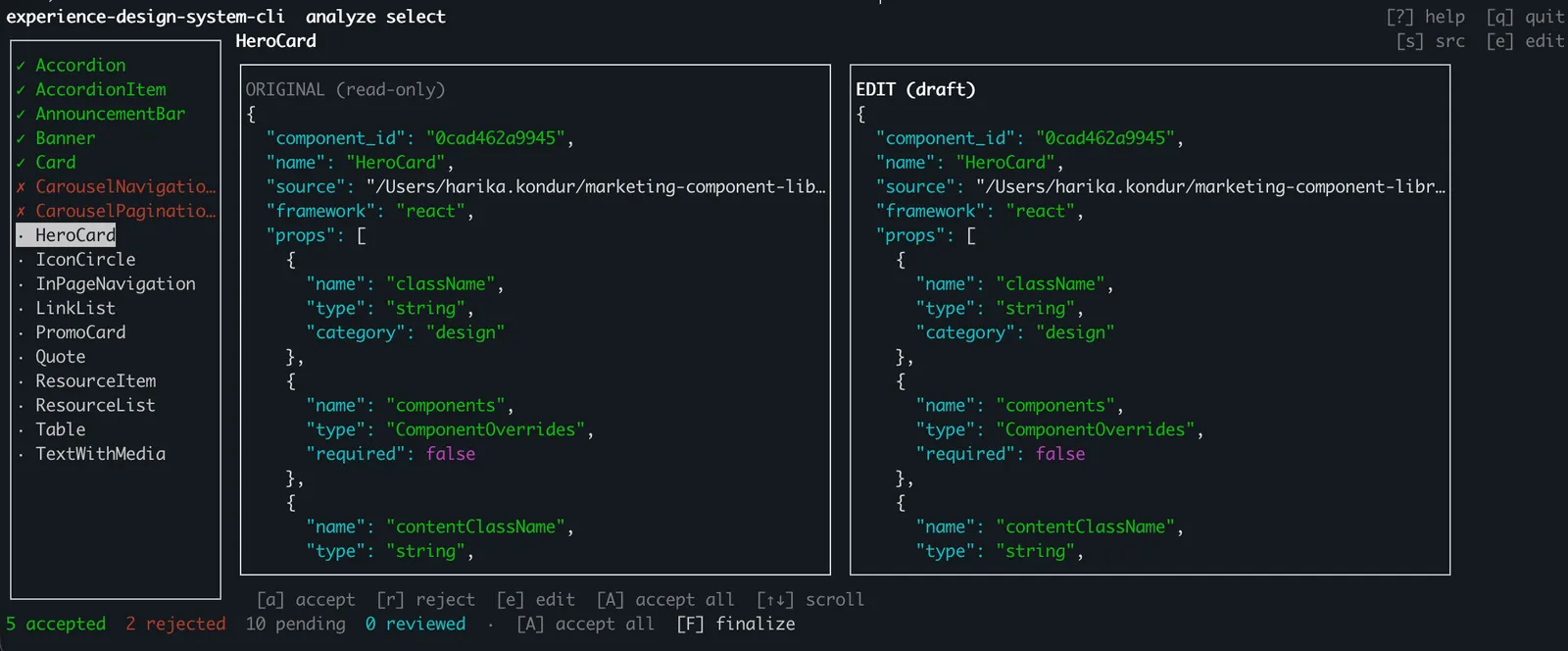
Launches a full-screen terminal interface where you can review each Component Type, accept or reject it, and edit its extracted definition.
Option C — Pattern-based selection:
Or target specific Component Types:
You can combine approaches — run select-agent first, then select to review and override the agent’s decisions in the TUI.
3. Generate CDF definitions
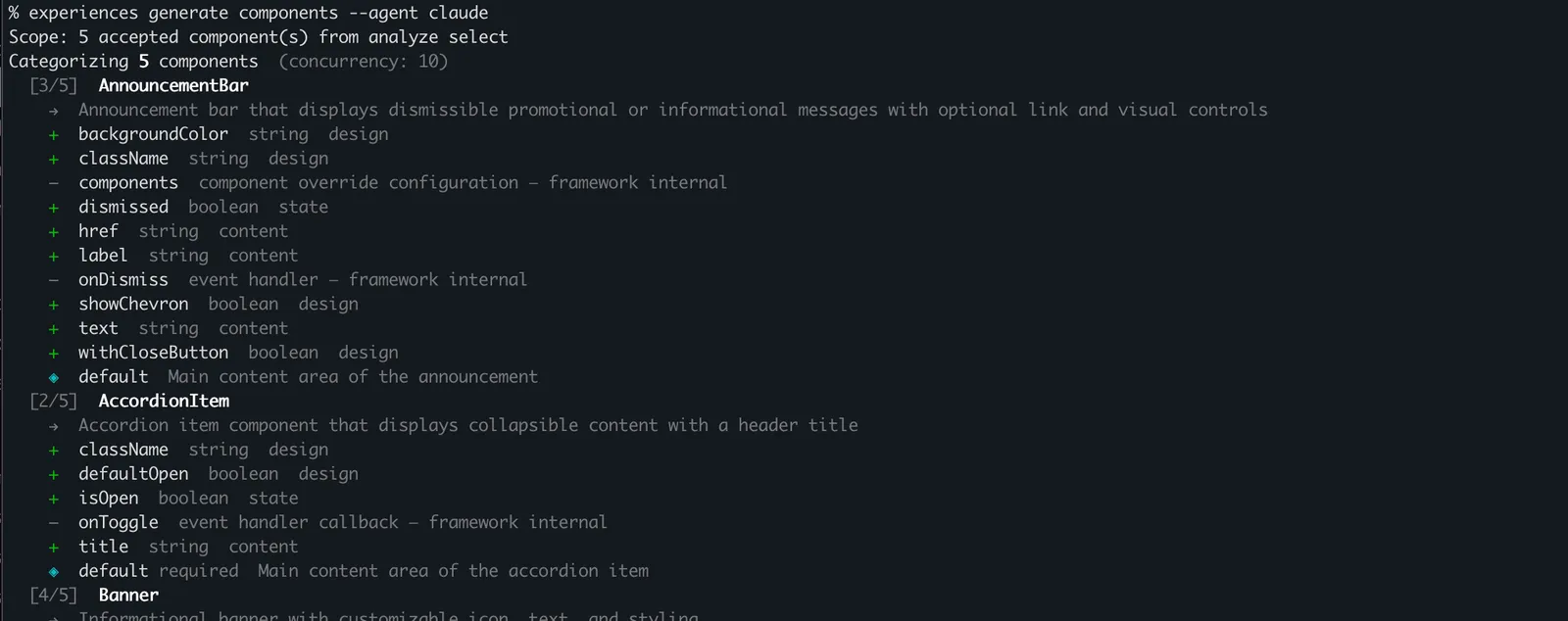
For each accepted Component Type, the AI agent generates a CDF definition describing its properties, their types (string, richtext, media, enum, token), and their categories (content, design, or state).
Additional options:
--tokens <path>— Pass a design token file for prop resolution (see Import design tokens).--token-map <path>— Pass a token map file for token-to-prop binding.--model <name>— Override the default model for the selected agent.--no-cache— Bypass cached results and regenerate all definitions.--verbose— Display detailed agent output.--dry-run— Show what the agent would generate without writing to the session.
4. Preview changes
Shows a diff of what will be created or updated in your Contentful space without making any changes. In an interactive terminal, a TUI displays entities grouped by status (new, changed, unchanged). In non-interactive mode, the CLI writes structured JSON to stdout.
To preview from exported JSON files instead of the session:
5. Select entities to push (optional)
Launches a TUI where you can select a subset of entities from the preview to push. Skip this step to push the full batch.
Additional options:
--select-all— Select all entities without an interactive prompt.--select <pattern>— Select entities matching a pattern (repeatable).--deselect <pattern>— Deselect entities matching a pattern (repeatable).--force— Skip confirmation for breaking changes (field removals, type changes).
6. Push to Contentful
Sends your generated Component Type definitions to Contentful in a single batch operation. The server returns counts of created, updated, and failed entities.
To include design tokens in the push, pass --tokens with a generated DTCG token file (see Import design tokens):
Additional options:
--yes— Skip the interactive confirmation prompt.--verbose— Display detailed push output.--force— Skip confirmation for breaking changes (for CI pipelines).--dry-run— Show what would be pushed without making changes.
Running apply push again after updating your component library creates or updates Component Types as needed. The CLI does not automatically delete Component Types that you removed from the selection.
Export to file
To write generated CDF definitions to a JSON file for inspection or version control:
You can pass this file to apply push in a later session:
Verify in Contentful
After pushing, verify that your Component Types appear in experiences:
- Log in to the Contentful web app.
- Navigate to your space and select Experiences.
- Go to an experience or create one.
- In the editor, navigate to the Components panel — your imported Component Types are displayed under their configured categories.
Next steps
Continue with this guide:
- Import design tokens — Import colors, spacing, typography, and other design tokens alongside your Component Types.