> This page is for Analytics.
> For clean Markdown of any page, append .md to the page URL.
> For a complete documentation index, see https://contentful-staging.ferndocs.com/developers/docs/llms.txt.
> For AI client integration (Claude Code, Cursor, etc.), connect to the MCP server at https://contentful-staging.ferndocs.com/developers/docs/_mcp/server.
# Quick start guide
> This is a quick start guide that helps developers get up and running with Contentful Analytics.
## Introduction
This quick start guide walks you through setting up Contentful Analytics from scratch.
> **Info**
>
> Contentful Analytics is currently in beta. [Reach out](https://www.contentful.com/contact/sales/) to your sales representative for access.
It assumes that your application implements Contentful Analytics in a React-based frontend and covers the following steps:
1. Create a Contentful account.
2. Create a new space in the Contentful web app.
3. Install and configure Contentful Personalization.
4. Install and integrate the [Experience SDK](/analytics/experience-sdk).
> **Info**
>
> Use version **7.17.6** or later.
5. Enable **Built-in AI Features** for the Analytics Agent.
## Step 1: Create a Contentful account
> **Info**
>
> Skip this step if you already have a Contentful account.
To create a Contentful account:
1. Open the [sign-up form](https://www.contentful.com/sign-up/).
2. Enter the required details to set up your account.
3. Select the CAPTCHA check box.
4. Click **Sign up**. Your account is created.
## Step 2: Create a new space in the Contentful web app
> **Info**
>
> Skip this step if you already have a Contentful space.
To create a new space:
1. Log in to the Contentful web app.
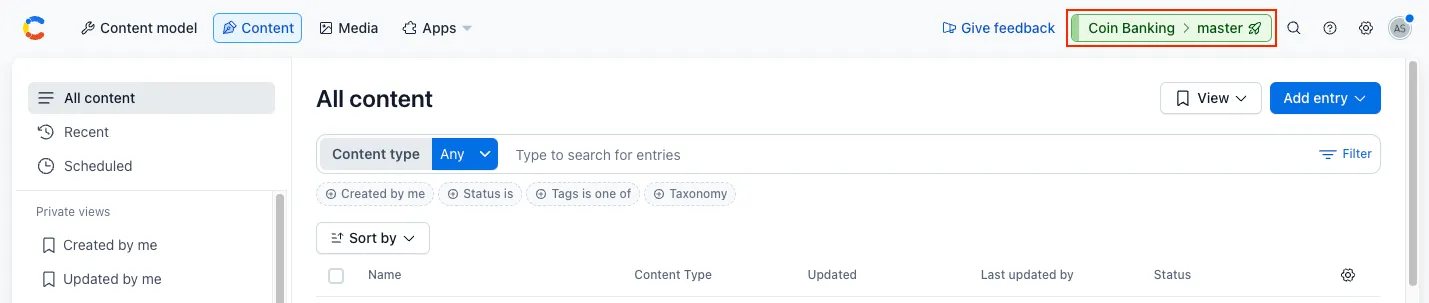
2. Click the environment switcher.
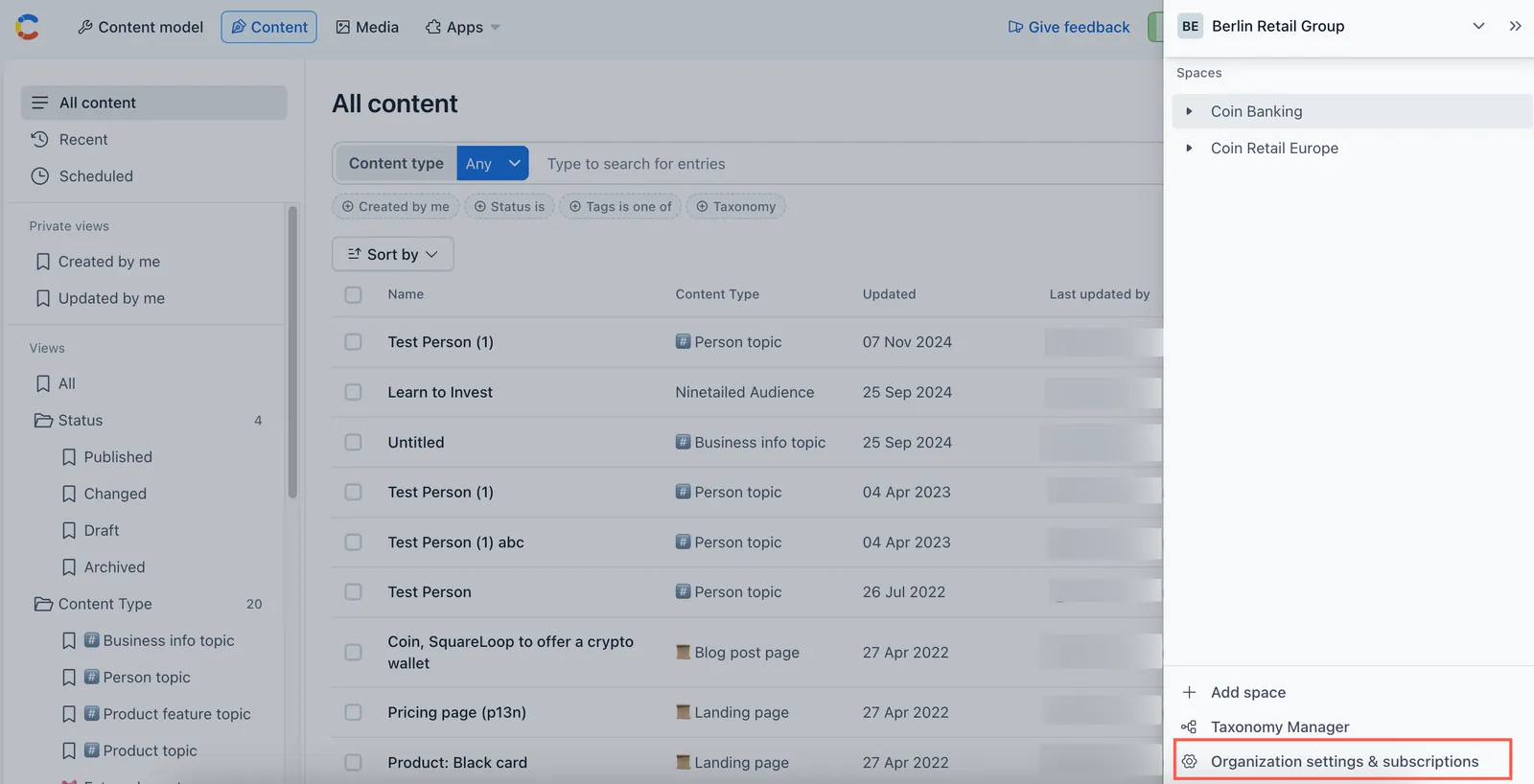
3. Click the organization name, and select **Organization settings & subscriptions**.
4. Navigate to the "Spaces" tab. The spaces overview page is displayed.
5. Click **Add new space**. The space configuration page is displayed.
6. Choose a space license for your space, and click **Continue**.
7. Enter your space details, and click **Continue**.
8. Review the details, and, if everything is in order, click **Confirm and create**. Your space is created.
## Step 3: Install and configure Contentful Personalization
To install and configure Contentful Personalization:
1. Log in to the Contentful web app.
2. Click **Apps**, and select **Marketplace**.
3. Search for Contentful Personalization, and click on its name. The "App details" page is displayed.
4. Click **Install**. The "Manage app access" modal is displayed.
5. Select the environment in which you want to install the app.
6. Click **Authorize access**. The Contentful Personalization configuration page is displayed with an overview of the upcoming steps required to correctly configure the app.
7. Click **Install**. The app is successfully installed and the configuration page is displayed.
8. Select the data bucket you want to connect to: **Main** or **Development**. For more information about data buckets, see the [Data buckets](https://www.contentful.com/help/analytics/data-buckets/) page in the Help Center.
9. On the "Analytics content types" tab, select the content types you want to extend with Contentful Analytics. Each content type you select will include an additional "Analytics" tab in the entry editor for any entry of that content type.
10. Click **Save**.
## Step 4: Install and integrate the Experience SDK
The fastest way to integrate Contentful Analytics into your application is by using our JavaScript [Experience SDK](/analytics/experience-sdk).
The installation and integration can be broken down into four steps:
### a. Install the SDK
Install a [suitable version](/analytics/experience-sdk#install-the-sdk) of the Experience SDK for your application and install the [Insights Plugin](/personalization/insights-plugin).
> **Info**
>
> Use version **7.17.6** or later.
### b. Create a Ninetailed instance
The Experience SDK provides a [Ninetailed instance](/analytics/experience-sdk#create-an-instance) that holds and updates the profile that identifies a user and provides methods to send events to the Experience API.
It is instantiated by providing the API key and environment, and can be further configured through optional parameters.
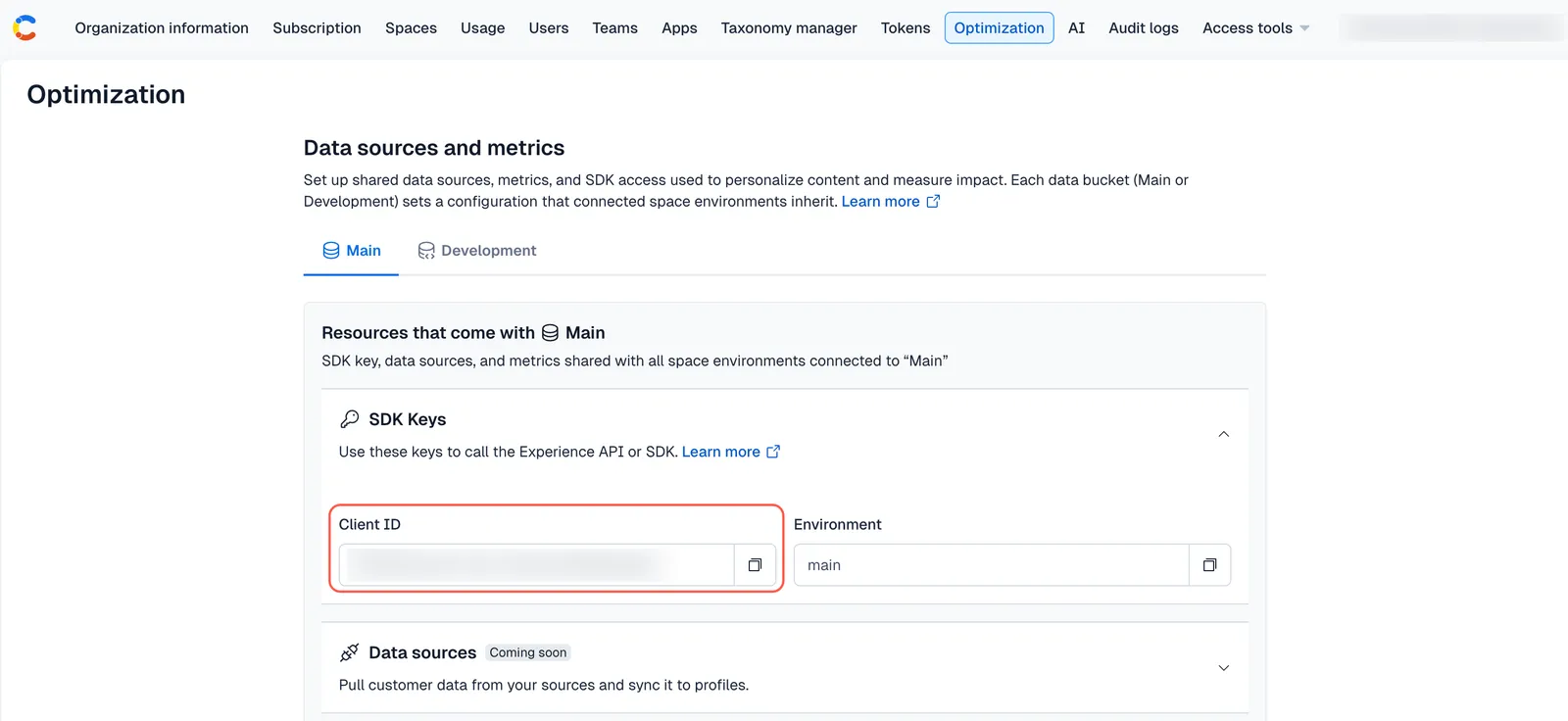
The API key is the **Client ID** field value displayed under the "SDK Keys" section, on the **Optimization** tab.
Your environment will be either `main` or `development`.
### c. Create and send events
In Contentful Analytics, user activities are stored as `page`, `track`, and `identify` events, which the application sends to the Experience API.
Integrate your application with Contentful Analytics by ensuring that the application:
* Sends a `page` event when a user views a page.
* Sends a `track` event when a user performs an action that you want to measure.
* Sends an `identify` event when a user performs an action that identifies them as a user who has visited the application before.
* Sends a `component` event when a user views a Contentful entry. `component` events are automatically sent by the SDK.
The Experience SDK provides an `` component for wrapping React components. A wrapped component will automatically send a `component` event to the Experience API if a user views it.
Sending events directly to the API is possible, but using the Experience SDK is much more convenient.
For more information on integrating your application with the Experience SDK, see the [Send events](/analytics/experience-sdk#send-events) section of its documentation.
### d. Validate your integration
We recommend using [Live Events](https://www.contentful.com/help/personalization/live-events/) to validate your setup and confirm that Contentful is receiving the event types required for Analytics.
To access Live Events:
1. Log in to the Contentful web app.
2. Navigate to the "Optimization" tab.
3. In the left sidebar, click **Live Events**.
4. Enable the **Live event streaming** toggle.
5. Load a page that contains tracked content, and trigger a user action that sends a `track` event. For example, clicking a button on the page.\
If your setup is working correctly, you should see at least `page`, `track`, and `component` events displayed in the event stream on the Live Events page.
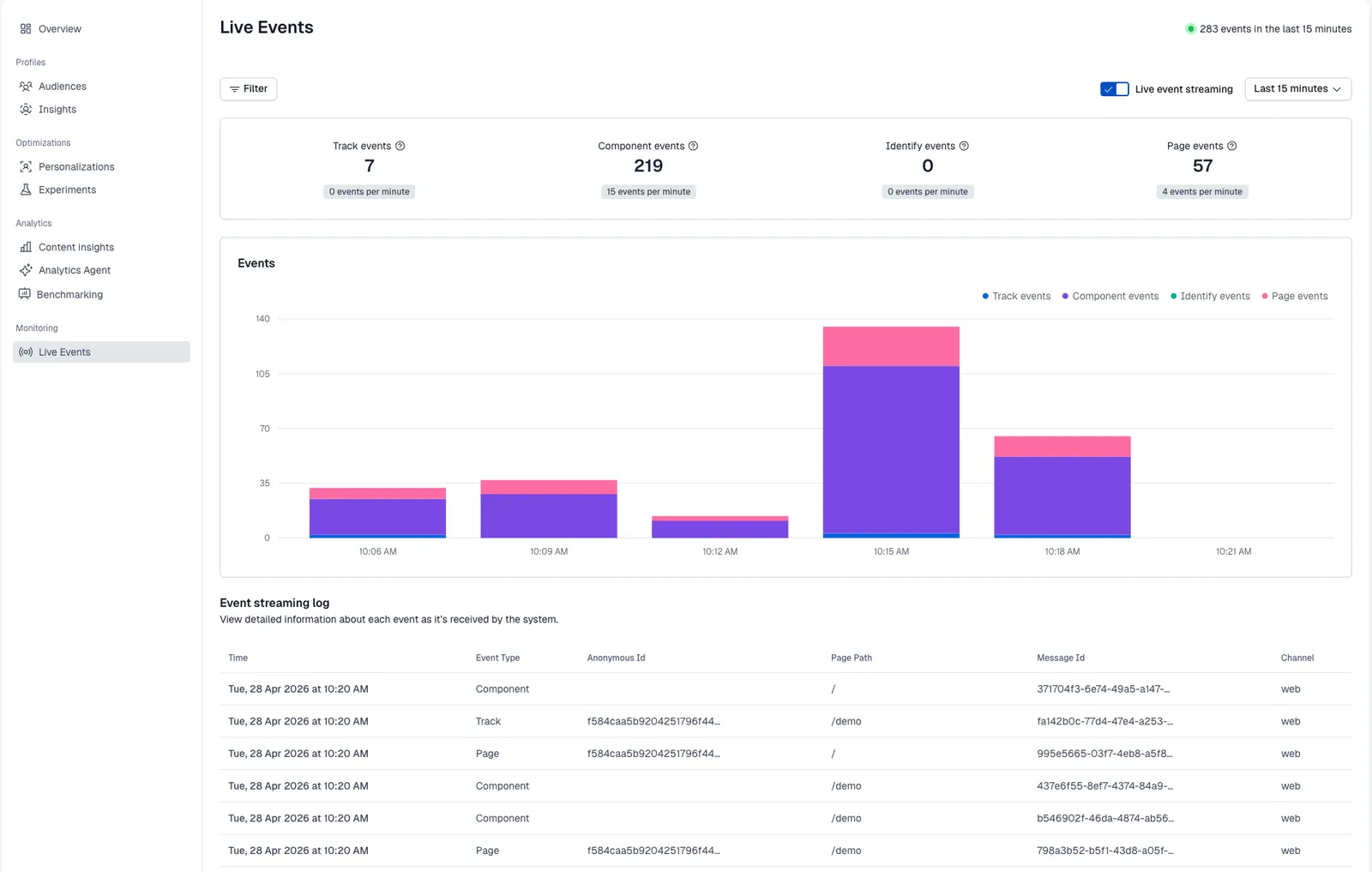
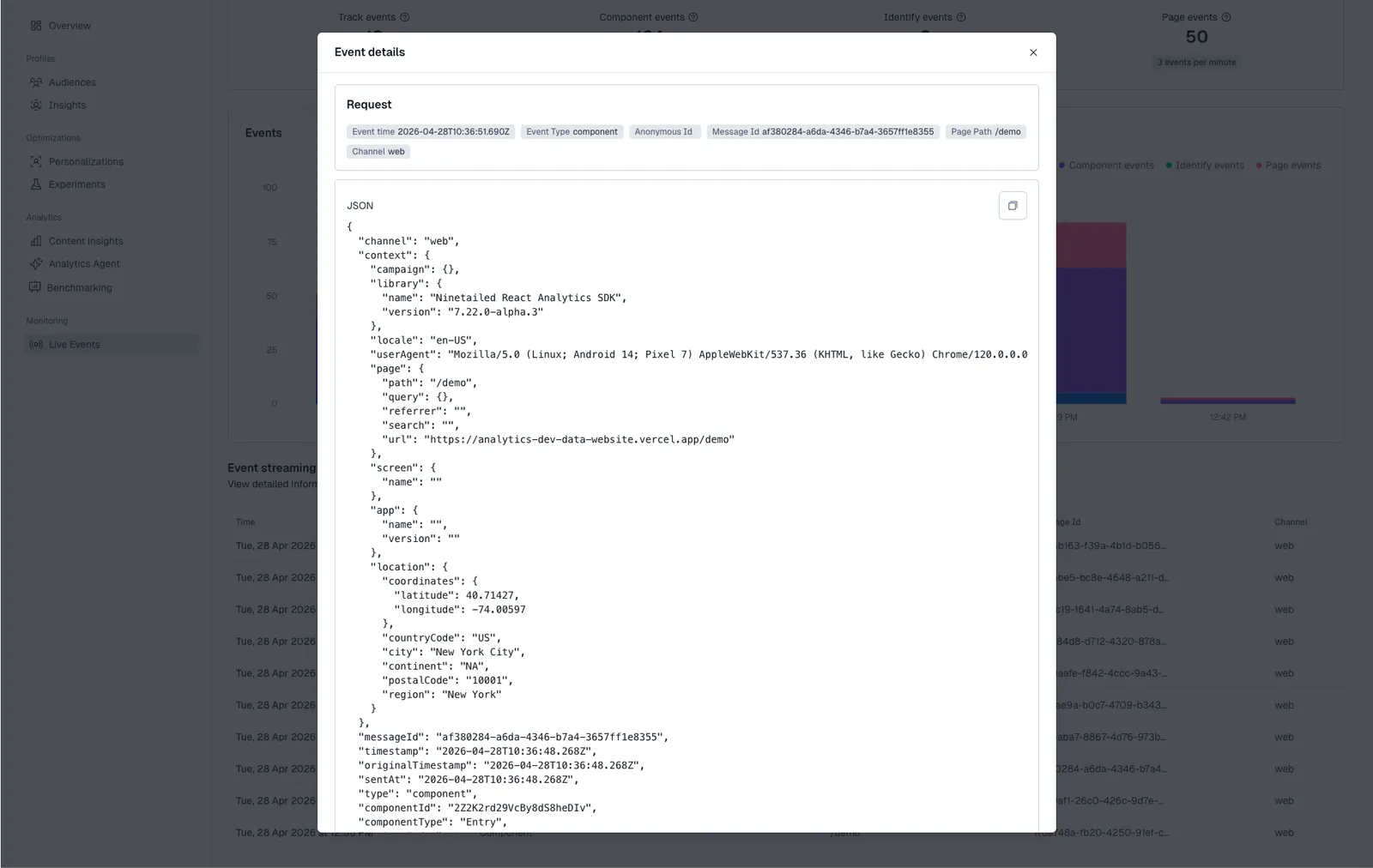
The **Events** dashboard displays the type of events that Contentful Analytics receives over time, and the **Event streaming log** lists individual events. If you want to inspect an event more closely, open its event details and review the JSON payload.
> **Info**
>
> Only organization admins can access the **Event streaming log** and the event details.
When checking the JSON payload for `component` events, confirm that the payload identifies the viewed component correctly. If the component was rendered as part of a personalization or experiment, also confirm that the payload includes the associated experience metadata, such as `experienceId`. This is especially important for sticky variant persistence, where `experienceId` and `variantIndex` must be present.
### Troubleshoot
#### If no events appear
If no events appear in Live Events, check that your setup is sending events at all. The most common issues are:
* an incorrect SDK API key
* the wrong environment
* not triggering any events in the application.
Make sure the **Live event streaming** toggle is enabled, then reload a tracked page and trigger a user action that should send a `track` event.
#### If `component` events are missing
If only `page` and `track` events are displayed, but no `component` events, the most common cause is that your components are not being tracked correctly.
For React-based setups, make sure Contentful entries are wrapped in `` or ``, and that the [Insights Plugin](/personalization/insights-plugin) is installed since it is required for component events to be generated and sent.
## Step 5: Enable built-in AI Features for the Analytics Agent
The Analytics Agent is the AI assistant that allows you to ask contextual questions about your content and instantly receive AI-powered content answers, both as text and visual elements. The Analytics Agent relies on Contentful's AI features, so you must first enable them at the organization level.
> **Info**
>
> Only organization admins can enable AI Features.
To enable AI features at the organization level:
1. Log in to the Contentful web app.
2. Navigate to the "Optimization" tab.
3. In the left sidebar, click **Analytics Agent**.
4. Click **Go to Organization Settings**.
5. Click **Continue to organization settings**.
6. Enable the **Built-in AI Features** option.
7. Review the pricing and number of approved output words modal, then click **Enable**.
8. Review [Contentful's AI Terms of Service](https://www.contentful.com/legal/contentful-ai-terms-of-service/). If you agree, click **Accept terms** to enable built-in AI features.