> This page is for Analytics.
> For clean Markdown of any page, append .md to the page URL.
> For a complete documentation index, see https://contentful-staging.ferndocs.com/developers/docs/llms.txt.
> For AI client integration (Claude Code, Cursor, etc.), connect to the MCP server at https://contentful-staging.ferndocs.com/developers/docs/_mcp/server.
# Analytics for Personalization users
> This guide explains developers how to add support for Contentful Analytics to existing Contentful Personalization customers.
## Introduction
This guide explains how Contentful Personalization customers can use their existing integration to quickly implement Contentful Analytics.
> **Info**
>
> Contentful Analytics is currently in beta. [Reach out](https://www.contentful.com/contact/sales/) to your sales representative for access.
This guide assumes that your application implements Contentful Personalization in a React-based frontend.
It covers the following steps:
1. Select the content types to extend with Contentful Analytics dashboards.
2. Install the [Insights Plugin](/personalization/insights-plugin). Use version **7.17.6** or later.
3. **Optional**: Wrap additional components in ``.
4. Validate your setup with Live Events.
5. Enable the **Built-in AI Features** option.
## Step 1: Select content types to extend with Contentful Analytics dashboards
You decide what content types display Content Analytics dashboards by enabling them.
To select the content types you want to extend with Analytics:
1. Log in to the Contentful web app.
2. Click **Apps** and select **Installed apps**. The list of apps installed in your environment is displayed.
3. Click **Configure** next to Contentful Personalization. The app configuration page is displayed.
4. Navigate to the "Analytics content types" tab.
5. Select the content types you want to extend with Contentful Analytics (e.g., Page). Each content type you select will include an additional "Analytics" tab in the entry editor for any entry of that content type.
6. Click **Save**. The "Analytics" tab is displayed in the entry editor for any entry of that content type.
## Step 2: Install the Insights Plugin
Identify the [Experience SDK version](/personalization/experience-sdk#install-the-sdk) that you're using and install the [Insights Plugin](/personalization/insights-plugin).
> **Info**
>
> Update the SDK version to **7.17.6** or later.
## Step 3: Wrap additional components in ``
The Experience SDK provides the following components that can be used to wrap your React components: `` and ``.
A wrapped component will automatically send a `component` event to the Experience API if a user views it.
Contentful Analytics will then use these events to calculate actionable insights.
* Wrap content in an `` component if you want to enable both Contentful Personalization and Contentful Analytics for it.
* Wrap content in an `` component if you exclusively want to enable Contentful Analytics for it.
> **Info**
>
> Content that is not wrapped in an `<Experience />` or `<EntryAnalytics />` component is ignored by Contentful Analytics.
## Step 4: Validate your setup with Live Events
We recommend using [Live Events](https://www.contentful.com/help/personalization/live-events/) to validate your Contentful Analytics setup and confirm that Contentful is receiving the event types required for Analytics.
A correct setup displays:
* `page` events when a user views a page.
* `track` events when a user performs an action you want to measure.
* `component` events when a user views a tracked Contentful entry.
* `identify` events only if your implementation identifies known users. These events are optional.
In most setups, you should expect to see more `component` events than `page` events, because a single page usually renders multiple tracked Contentful entries.
### Validate your setup
To validate your setup:
1. Log in to the Contentful web app.
2. Navigate to the "Optimization" tab.
3. In the left sidebar, click **Live Events**.
4. Enable the **Live event streaming** toggle.
5. Load a page that contains Contentful tracked content, and trigger a user action that sends a `track` event. For example, clicking a button on the page.\
If your setup is working correctly, you should see at least `page`, `track`, and `component` events displayed in the event stream on the Live Events page.
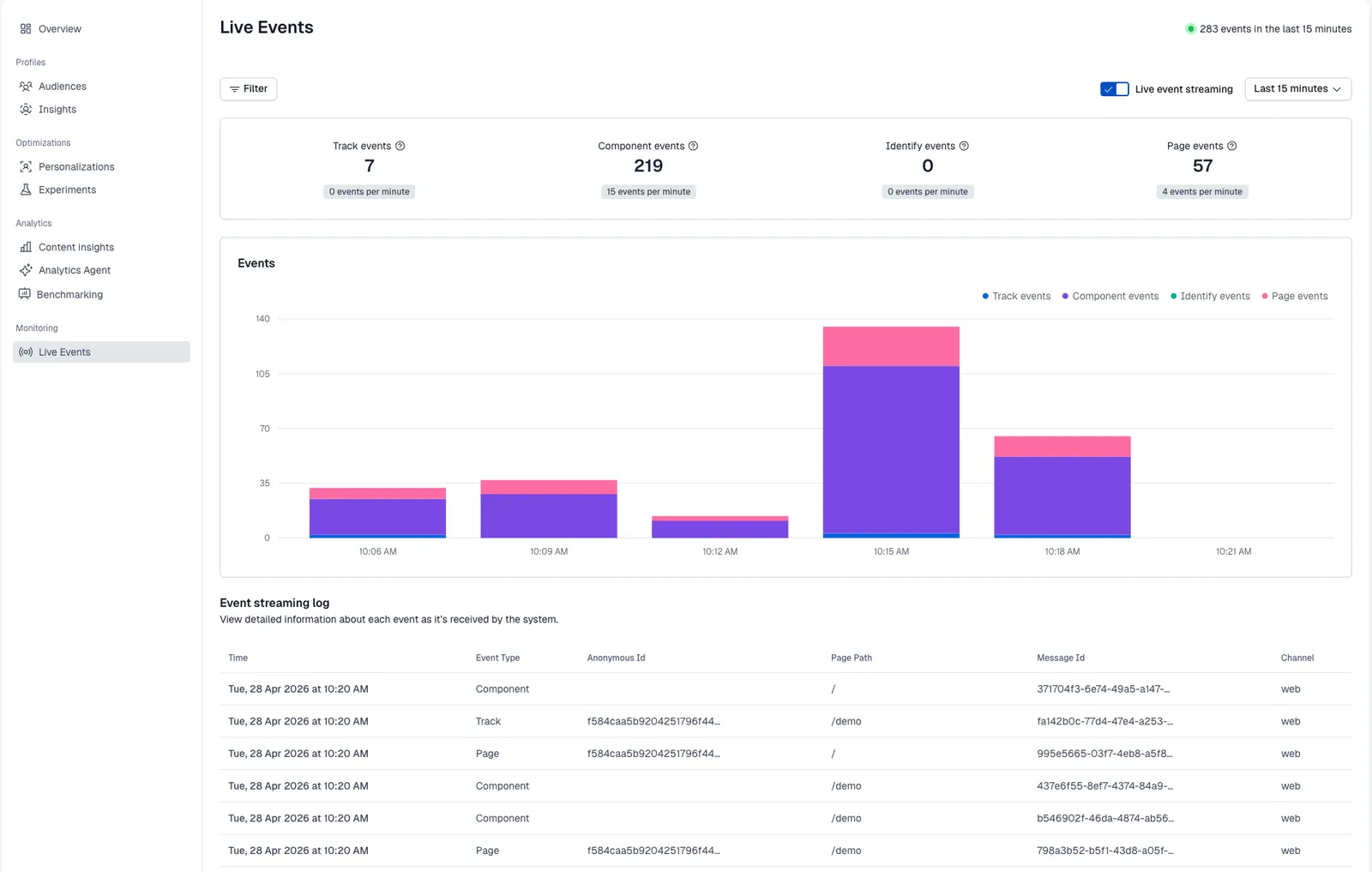
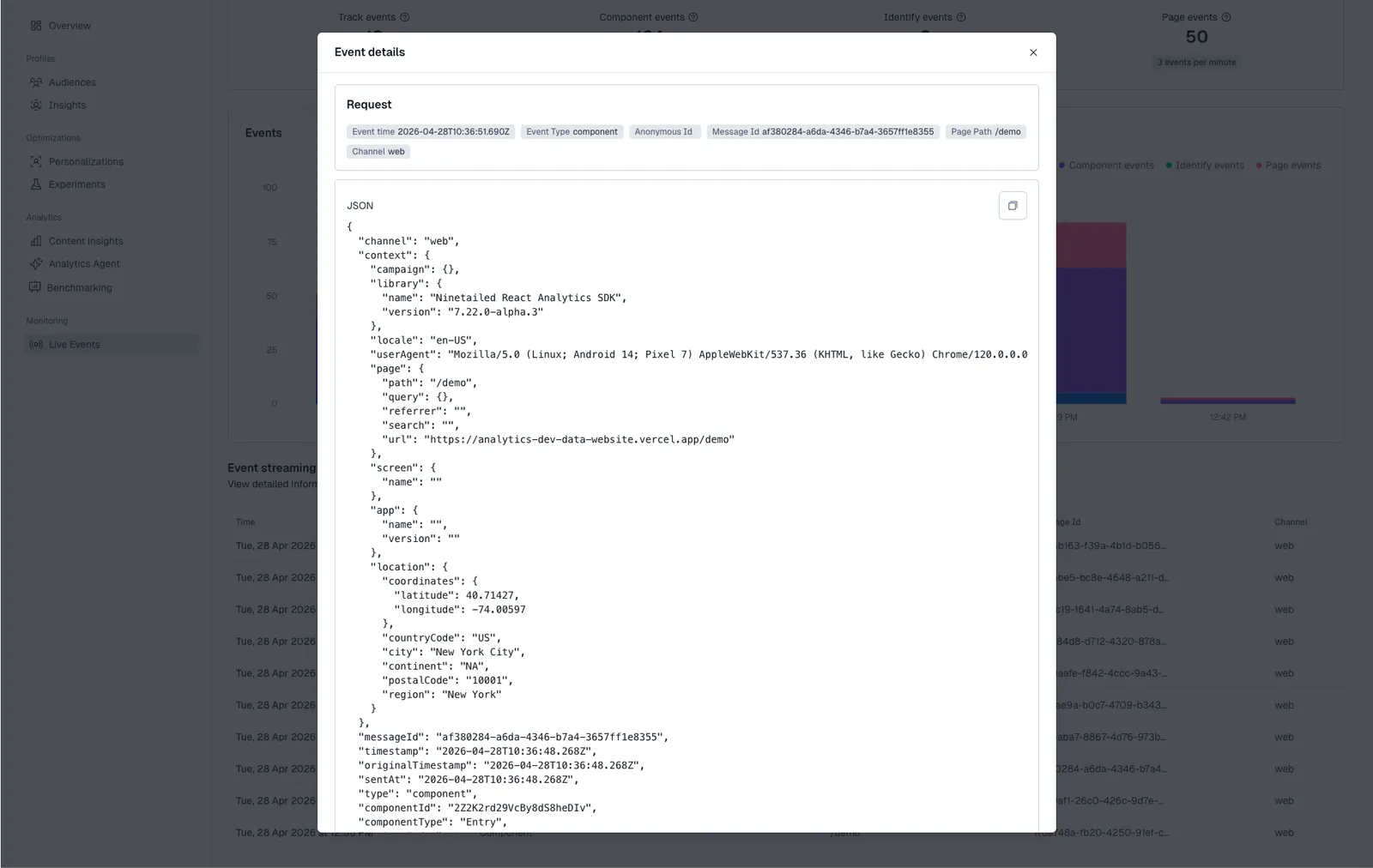
The **Events** dashboard displays the type of events that Contentful Analytics receives over time, and the **Event streaming log** lists individual events. If you want to inspect an event more closely, open its event details and review the JSON payload.
> **Info**
>
> Only organization admins can access the **Event streaming log** and the event details.
When checking the JSON payload for `component` events, confirm that the payload identifies the viewed component correctly. If the component was rendered as part of a personalization or experiment, also confirm that the payload includes the associated experience metadata, such as `experienceId`. This is especially important for sticky variant persistence, where `experienceId` and `variantIndex` must be present.
### Troubleshoot
#### If no events appear
If no events appear in Live Events, check that your setup is sending events at all. The most common issues are:
* an incorrect SDK API key
* the wrong environment
* not triggering any events in the application.
Make sure the **Live event streaming** toggle is enabled, then reload a tracked page and trigger a user action that should send a `track` event.
#### If `component` events are missing
If only `page` and `track` events are displayed, but no `component` events, the most common cause is that your components are not being tracked correctly.
For React-based setups, make sure Contentful entries are wrapped in `` or ``, and that the [Insights Plugin](/personalization/insights-plugin) is installed since it is required for component events to be generated and sent.
## Step 5: Enable built-in AI Features for the Analytics agent
The Analytics Agent is the AI assistant that allows you to ask contextual questions about your content and instantly receive AI-powered content answers, both as text and visual elements. The Analytics Agent relies on Contentful's AI features, so you must first enable them at the organization level.
> **Info**
>
> Only organization admins can enable AI Features.
To enable AI features at the organization level:
1. Log in to the Contentful web app.
2. Navigate to the "Optimization" tab.
3. In the left sidebar, click **Analytics Agent**.
4. Click **Go to Organization Settings**.
5. Click **Continue to organization settings**.
6. Enable the **Built-in AI Features** option.
7. Review the pricing and number of approved output words modal, then click **Enable**.
8. Review [Contentful's AI Terms of Service](https://www.contentful.com/legal/contentful-ai-terms-of-service/). If you agree, click **Accept terms** to enable built-in AI features.